PowerPhotos Help
Starting an export
PowerPhotos provides three different ways to choose a set of photos to export from a library.
- Individual photos: You can select one or many photos in the photo browser to export. Exporting this way will not recreate any subfolders based on your library’s albums, it will only export the selected photos to a single, flat folder.
- Albums: You can select one or more albums or folders in the album list to export as well. When exporting this way, you’ll have the option to create nested subfolders that mirror the albums and folders in your Photos library.
- Whole library: You can select a library in the library list and choose to export the entire library at once. This will export every photo and video in the library, and give you the option to also recreate the library’s album hierarchy, the same way as when exporting individual albums.
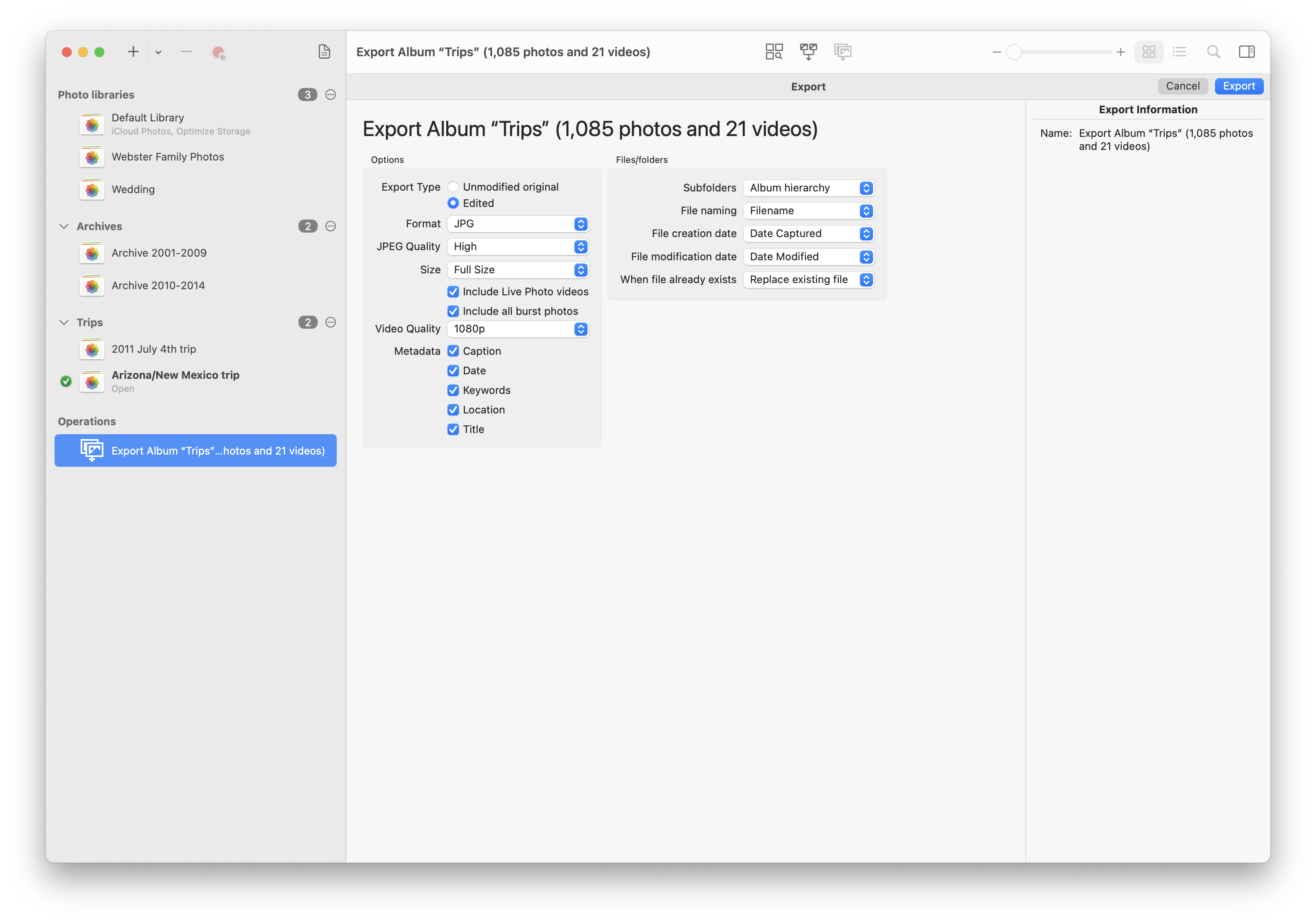
To start an export, select the photos, albums, or library you want to export, then select “Export” from the File menu. You can also right-click on these items and choose “Export” from the contextual menu.
PowerPhotos will then display a number of options for your export, including export types, format and size settings, metadata options, video settings, file organization, and additional files. After you’ve configured the export, click the “Export” button in the upper right to perform the export.