
PowerPhotos Help
Introduction
PowerPhotos is a utility that works alongside Apple Photos on your Mac to provide additional tools to help manage your photo collection. One of its primary features is the ability to work with multiple photo libraries, so instead of having to put your entire collection into Photos all at once, you can divide your photo between multiple, smaller libraries. This can make it easier to browse your libraries, as well as saving space on your internal drive and iCloud.
PowerPhotos also provides a wide array of tools for managing the libraries themselves, such as album management, duplicate removal, metadata editing, search, and more
There are four main parts to the PowerPhotos window:
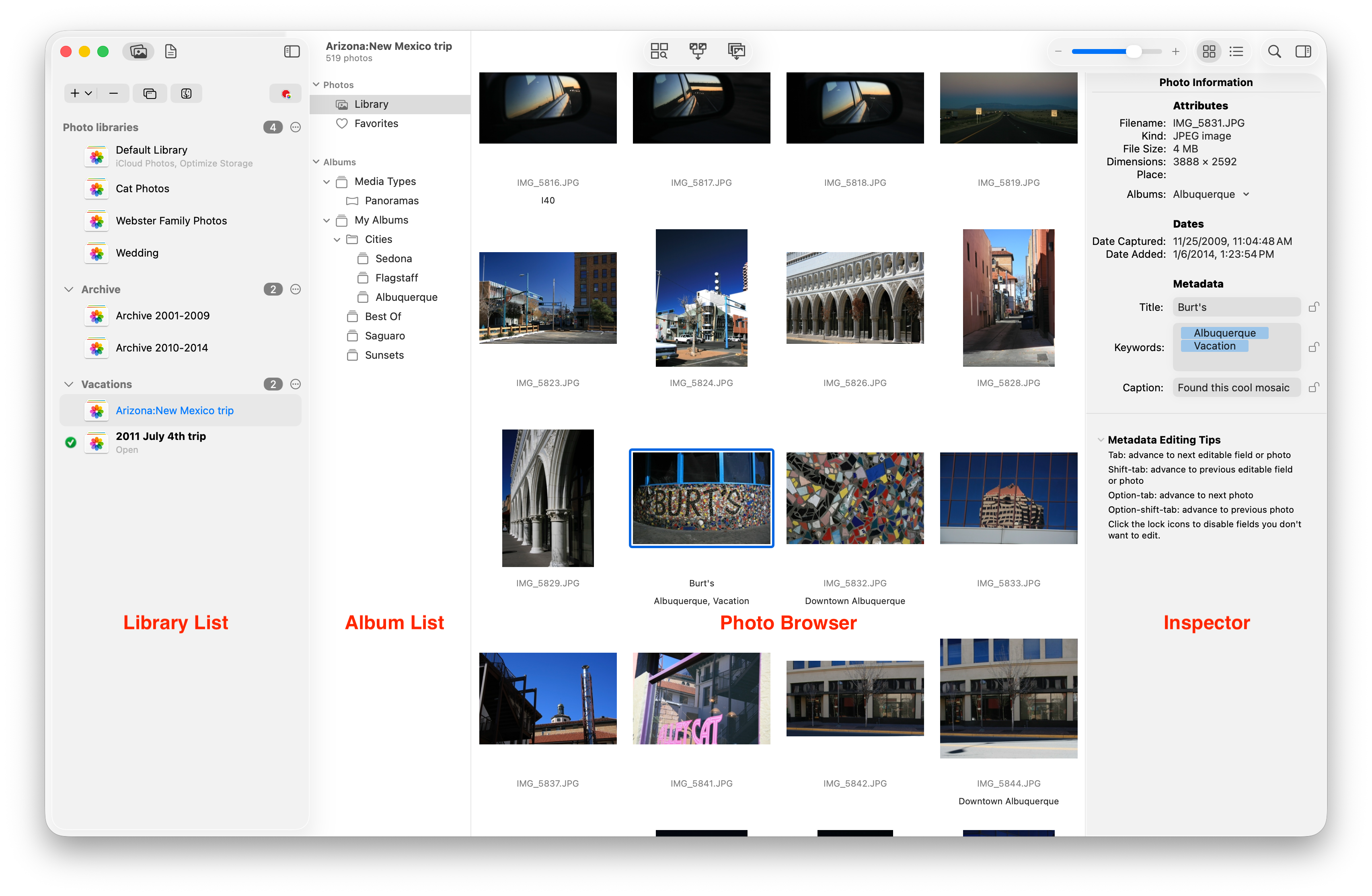
Library list: This is a list of the photo libraries that PowerPhotos knows about. The “+” button lets you create a new, empty library, or add existing Photos libraries to PowerPhotos. You can rename the items in the list by selecting the library, then clicking the name and typing in a new name. The “-” button lets you remove a library from your library list (though the library will remain where it is on your hard drive). You can also create library groups to further organize your libraries instead of having them all in one long list. PowerPhotos reports can also be viewed here by toggling between libraries and reports in the toolbar.
Album list: This displays the list of albums in the selected library. You can select an album to view the photos it contains in the photo browser on the right, as well as drag albums to move them around in the album list, or to another library to copy the album to that library.
Photo browser: The photo browser takes up the majority of the window, and allows you to browse through the actual photos stored in whatever library you have selected. There is both a grid view, which lets you browse photos much like in Photos, and a list view, which provides an easy way to view your photos’ attributes, such as dates, ratings, keywords, etc. The View menu contains options for sorting and viewing different photo attributes.
Inspector: The inspector pane on the right hand side of the window will show more detailed information about whatever item you currently have selected in the window. This can display information for a photo, album, or library, depending on what you have selected most recently. This is also where you can edit the titles, keywords, and captions of selected photos.