
PowerPhotos Help
Library versions and upgrading
The Apple Photos app ships as part of macOS, with each version of macOS having a corresponding version of Photos included with it. Each of your Photos libraries also has a version number associated with it, matching whatever the last version of Photos was that opened that particular library. You can see a library’s version by selecting it in PowerPhotos and looking in the inspector pane on the right. One result of this versioning is that both Photos and PowerPhotos are only able to open a library that exactly matches the installed version of Photos.
Older libraries
If you have a library from an older version of Photos/macOS, the first time you open that library in Photos, it will automatically be upgraded to the latest version, with Photos showing a progress bar as it works, since the upgrade process can sometimes take a little while to complete.
When selecting an older library in PowerPhotos, it will display a message saying the library needs to be upgraded in order to be used, along with an “Upgrade Library” button that you can click. To upgrade the library, PowerPhotos will simply open that library in the Photos app and let it apply its normal upgrade process. Once the upgrade is complete, when you return to PowerPhoto it will then be able to display the library contents.
Newer libraries
Occasionally, you will encounter a library from a newer version of Photos/macOS than the one you’re running. The most common scenario is when you copy a library from another Mac (e.g. over the network or via an external drive) and that other Mac is running a newer version of macOS than the Mac you’re trying to view the library with. Unfortunately, there is no way to “downgrade” a library to an older version. The only options for viewing that library will either be to upgrade macOS on that Mac to at least the version of the other, newer Mac, or restore the library from a backup that was made before the other Mac had its macOS upgraded.
Upgrading multiple libraries
If you maintain a large number of Photos libraries, each time you update your version of macOS, this requires also updating each one of your libraries before you can use it in PowerPhotos or Photos. Normally you would have to manually open each library in Photos to have it upgraded, but PowerPhotos will help automate upgrading multiple libraries at once.
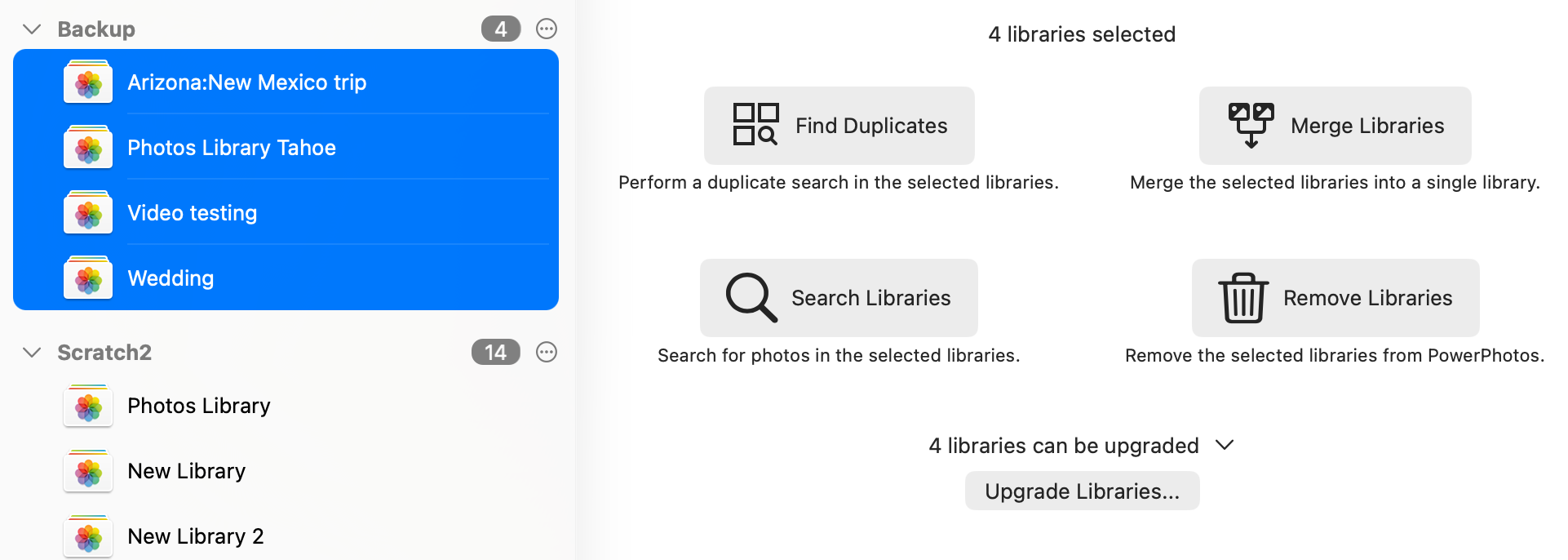
To upgrade multiple libraries, start by making a multiple selection in the library list, i.e. by holding down the command key or shift key while clicking to select multiple items. If one or more of the libraries you selected needs an upgrade, a message will be displayed near the bottom of the window saying how many of the selected libraries need to be upgraded. Clicking the arrow next to the message will give you more detail about exactly which libraries need an upgrade. You can click the “Upgrade Libraries” button if you want to proceed with upgrading.
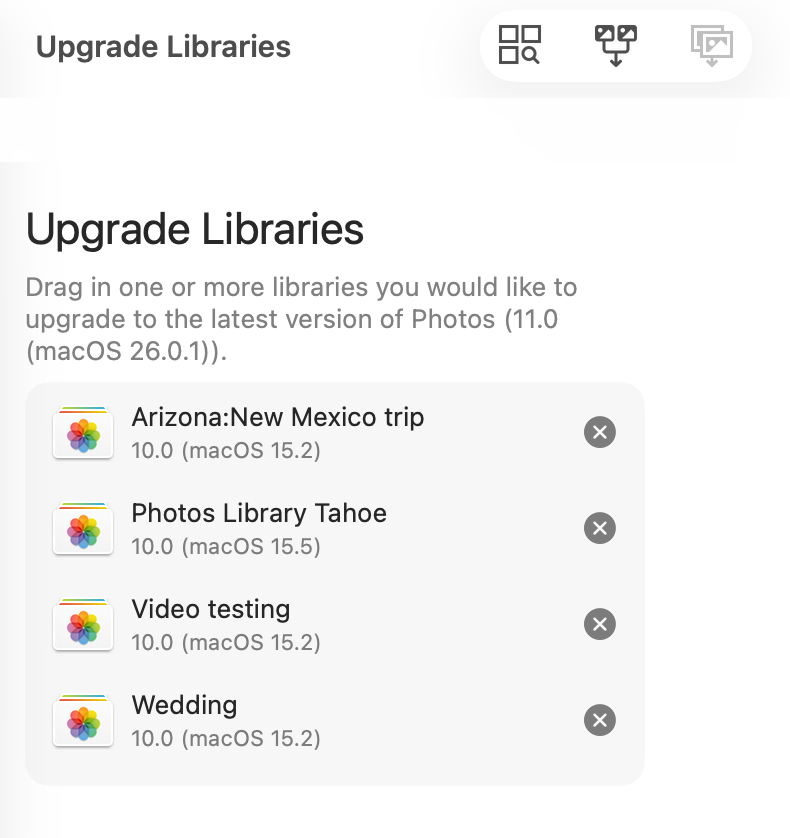
Here you will be given a setup screen where you can customize which libraries you want to upgrade. If there are some you don’t want to upgrade, click the X next to the library to remove it from the list. If there are additional libraries you want to upgrade, drag them into the box in the setup view. Once you have decided which libraries to upgrade, click the “Upgrade Libraries” button in the upper right to begin the upgrade process.
PowerPhotos will open each library in turn in the Photos app, wait for Photos to complete the upgrade, then quit Photos again and proceed to the next library. This means you will see the Photos window appear and disappear multiple times during the upgrade process, once for each library. Once PowerPhotos has finished, your libraries should now all be ready to use in Photos and PowerPhotos.