
PowerPhotos Help
Copying albums
When keeping your photos separated in multiple libraries, you sometimes need to copy a set of photos from one library to another. With Photos, the only way to do this is to manually export the photos from one library, switch over to your other library, and then manually import them into that library. PowerPhotos provides a way to copy photos directly from one library to another in one step, while retaining photo metadata such as keywords, dates, favorites, titles, and descriptions.
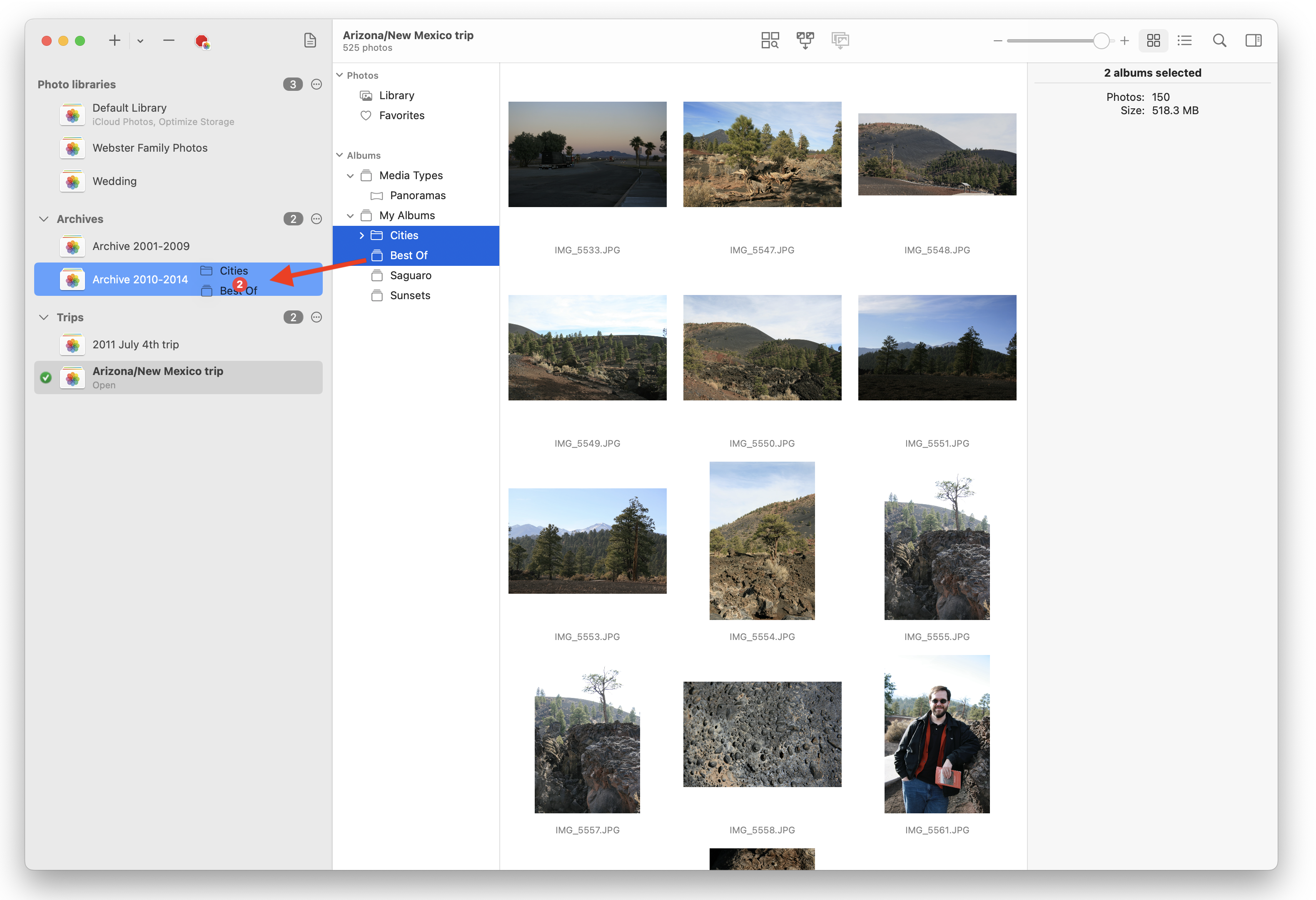
To copy albums to another library, select them in PowerPhotos, then drag them them onto the library you would like to copy them to. PowerPhotos will first collect the information about those photos from the source library, and then import those photos into the destination library and restore all the photo information as it was before. If you drag more than one album at once, and a photo belongs to more than one of those albums, the photo will only be imported once, but will be added to all the appropriate newly created albums in the destination library.
In addition to dragging albums, you can select albums then control-click on them, and use the “Copy To” contextual menu item to copy them to another library. You can also open libraries in separate windows and drag albums from one window to another to copy them across.
Note that you cannot drag albums from Photos itself into PowerPhotos - you must drag the albums from PowerPhotos’ own window in order to perform a copy. Also, only regular albums and folders can be copied as-is between libraries. Copying a smart album to another library will copy all the photos in that smart album, but a regular album will be created in the destination library containing those photos rather than a smart album. Copying “project” items like calendars, books, and slideshows between libraries is not supported.
Unregistered users are limited to only copying albums totalling no more than 20 photos.
Moving albums
In some cases, you may want to move albums from one library to another rather than copy them. You can do this in PowerPhotos by holding down the command key while dragging albums across to another library, or by control-clicking on the albums and using the “Move To” contextual menu item.
To perform the move, PowerPhotos will first copy the albums and their photos over to the destination library, then once the copying is done, it will delete the albums and photos from the library they came from (Photos will prompt you for permission to perform the deletion).
If any of the photos fail to be copied successfully (e.g. a photo is corrupt), then after finishing the copying, PowerPhotos will ask you whether you only want to delete the photos that were copied successfully, delete all the photos that you dragged across, even the ones that didn’t get copied, or don’t delete anything. You can see more detail about which photos failed to copy by clicking “View Report” in the message that’s shown when the move operation is finished.